A few years ago most clinic payments in the Philippines were cash. Today a single afternoon at the front desk can include a GCash transfer, a Maya QR payment, a BPI card swipe, a bank transfer for a package, and a patient who still pays in cash.
Accepting all of these is easy. Making them add up at the end of the day is not. The GCash total is in one app, card settlements arrive two days later minus fees, and the cash drawer is short by ₱500 with no way to tell why.
This guide covers how to record each payment so your daily sales match what actually landed in your accounts.
Record the payment the moment it happens
The most common mistake is recording payments later from memory or from screenshots in a group chat. By evening, nobody remembers which ₱3,500 GCash transfer was for which patient.
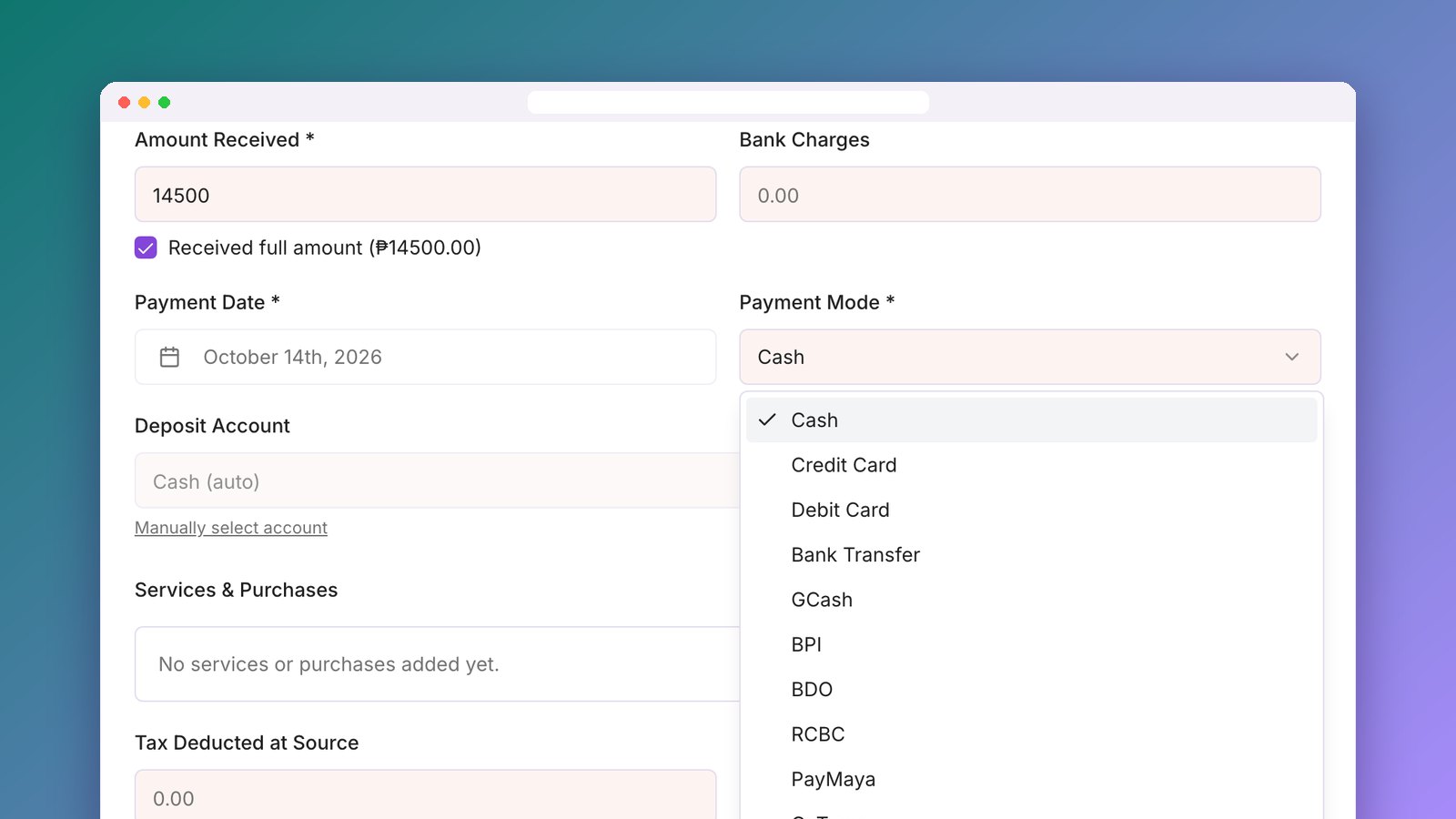
Record each payment at the front desk, against the patient's invoice, before the patient leaves. In EsthetiqOS, the Record Payment screen asks for the patient, the amount, the date, and the payment mode, and shows the outstanding balance so staff can see if the patient paid in full.
Use a separate payment mode for each channel
"Cash" and "Non-cash" is not enough. If GCash, Maya, and card payments are all recorded as "bank", you cannot reconcile any of them.
EsthetiqOS comes with the payment modes Philippine clinics actually use:
You can rename modes, reorder them, turn off the ones you never use, and add your own, like Metrobank or a second GCash number. Turning off unused modes keeps the list short so staff pick the right one.
Capture the reference number and a screenshot
For every non-cash payment, save two things:
When a patient later says "I already paid", you can find the reference in seconds. EsthetiqOS has a field for the reference number, the bank name, the last four digits of a card, and an upload for the receipt or screenshot.
Account for fees and withholding tax
Card terminals and some wallets take a fee. If a patient pays ₱10,000 by card and the bank deposits ₱9,700, your books should show ₱10,000 of sales and ₱300 of fees, not ₱9,700 of sales.
EsthetiqOS handles this two ways:
For corporate clients who withhold tax, there is a Tax Deducted at Source field. Both fields are shown only to admins, so front desk staff see a simpler screen.
Apply payments to the right invoice
Patients pay in pieces: a deposit when they book, the balance after the procedure, installments on a package.
When you record a payment in EsthetiqOS, it is applied to the patient's open invoices, oldest first, including partially paid ones. If the patient pays more than they owe, the excess is shown on screen so nobody misses it. You cannot apply more to an invoice than its balance.
Reconcile at the end of the day
At closing, compare what the system says against what you actually received:
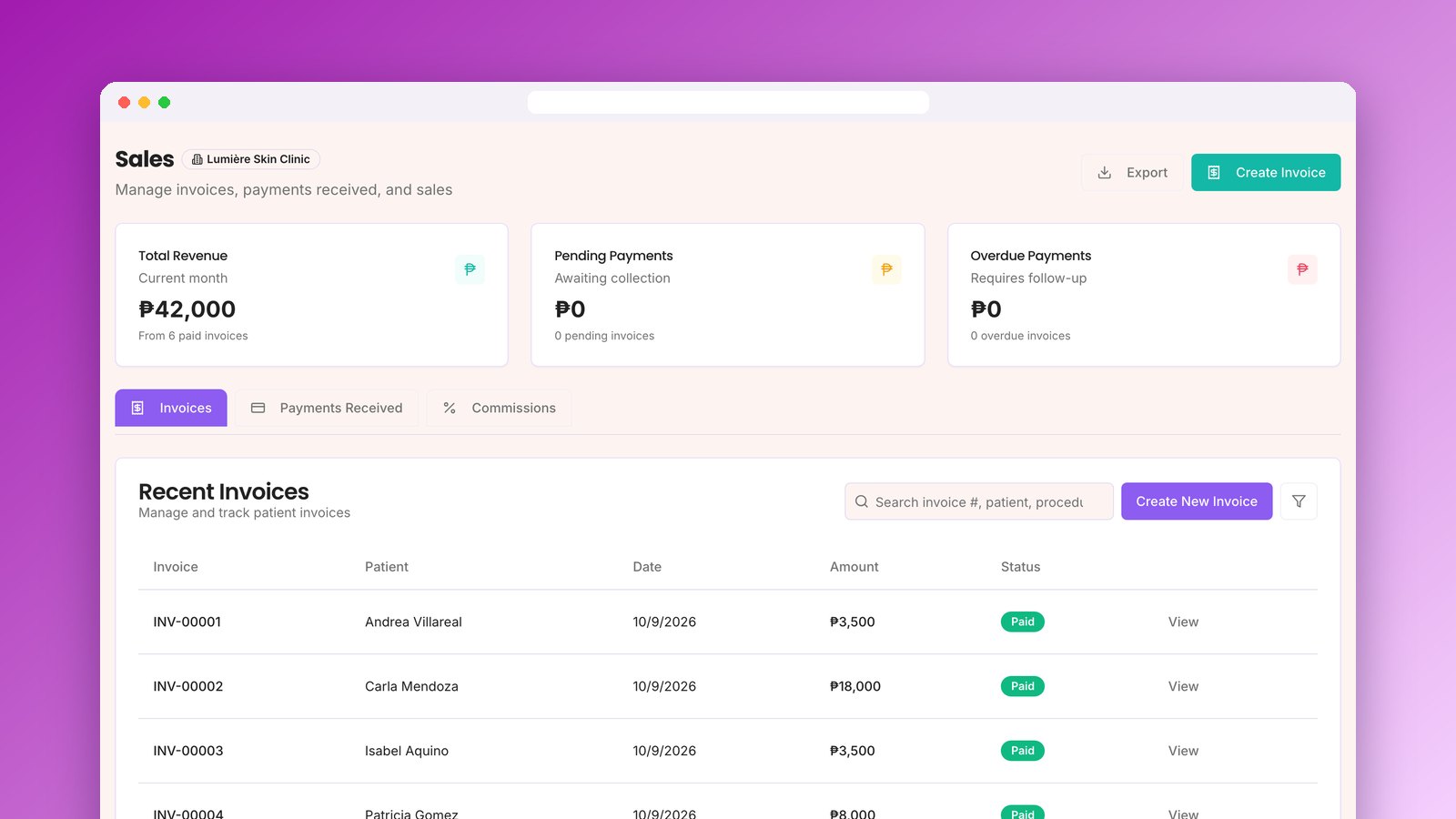
In EsthetiqOS, Sales has a Payments Received tab you can filter by payment mode and export to CSV. The daily sales report shows a column for each payment mode, so a gap points straight to the channel it came from.
What EsthetiqOS does not do
To be clear about scope:
What it does is make sure every peso you received is matched to a patient, an invoice, and a payment channel.
Getting started
List every way your clinic accepts money today, including that second GCash number at the reception desk. Set those up as payment modes, turn off the rest, and record the next payment at the front desk with its reference number.